D2 言語と UML (1): d2 コマンドのインストール

たまに良記事を見かける GIGAZINE から。
D2 とは
D2 はスクリプト言語およびコンパイラの一種で “A modern language that turns text to diagrams” とあるように,テキスト記述から UML 図などの図を生成することができる。 PlantUML みたいなツールと思えば大体合っている。 リポジトリを見ると Go で書かれているようだ。 MPL (Mozilla Public License) 2.0 でライセンスされている。
もともとは Terrastruct 社のプロジェクトとして始まったそうなのだが,同社が事業を終了したため,非営利のプロジェクトとして再出発したらしい。
Hello, I’m happy to share the news that D2 is now fiscally sponsored by Hack Club!
The project was born and thus far developed as an open-core arm of a for-profit company. The development of open-source D2 was funded by the closed-source IDE (D2 Studio) and proprietary layout algorithm (TALA). The company is shutting down, and D2 will continue as an independent, completely open-source, non-profit project through Hack Club.
ドキュメント も充実していて playground も用意されているので,簡単に試してみることができる。
d2 コマンドのインストール
ローカル環境に導入するのであれば GitHub リポジトリの Releases ページから最新のバイナリをダウンロードすることができる。 また,以下のインストールスクリプトを使って導入することもできる。
$ curl -fsSL https://d2lang.com/install.sh | sh -s --
/* installing d2-latest */
log: fetching latest version of d2lang/d2
log: detected latest version: v0.10.0
log: installing standalone release d2-v0.10.0-linux-amd64.tar.gz from github
exec: curl -fL -#o ~/.cache/d2/release/d2-v0.10.0-linux-amd64.tar.gz.inprogress -C- -H 'Accept: application/octet-stream' https://github.com/d2lang/d2/releases/download/v0.10.0/d2-v0.10.0-linux-amd64.tar.gz
######################################################################## 100.0%
exec: mv ~/.cache/d2/release/d2-v0.10.0-linux-amd64.tar.gz.inprogress ~/.cache/d2/release/d2-v0.10.0-linux-amd64.tar.gz
log: verified d2-v0.10.0-linux-amd64.tar.gz (8d0431301a1c2cccb73e4895dc8144113b37fdc56d00c7666f6177b9ec90cd9a)
exec: mkdir -p ../prefix/bin
exec: install ./bin/d2 ../prefix/bin/d2
exec: mkdir -p ../prefix/share/man/man1
exec: install ./man/d2.1 ../prefix/share/man/man1
exec: sh -s -- "$action" "$PREFIX" "$OS" "$INSTALLED_VERSION" "$stage" "$VERSION" "$expected_binary"
/****************************************************************
 * next steps
 ****************************************************************/
log: d2-v0.10.0-linux-amd64 has been successfully installed into ~/.local
log: Rerun this install script with --uninstall to uninstall.
log
log: Run d2 --help for usage.
log: Run man d2 for detailed docs.

$ d2 --version
v0.10.0
チェックサムの検証も行っているようだし,こちらの方がオススメである。
ちょこっと使ってみる
動作確認がてら簡単な図を描いてみる。
まずは hello.d2 というファイルを作って,以下の内容を記述する。
hello -> world
これをコンパイルにかける。
$ d2 hello.d2
すると hello.svg というファイルが生成される。
内容はこんな感じ。

おうふ! 余白が大きすぎるな。
余白を調整するには,コマンドラインで --pad オプションを指定する。
ちょっとだけ余白を残して…
$ d2 --pad=10 hello.d2

これならいいか。
あるいは .d2 ファイルのほうで
vars: {
  d2-config: {
    pad: 10
  }
}
hello -> world
などとする。
出力先のファイルは
$ d2 hello.d2 out.svg
のように指定できる。 このとき,出力先ファイルの拡張子でフォーマットを判別しているみたいで,以下のフォーマットに対応している。
| 拡張子 | フォーマット |
|---|---|
.svg |
SVG |
.png |
PNG |
.pdf |
|
.pptx |
Microsoft PowerPoint |
.webm |
WebM |
.gif |
GIF |
.mp4 |
MP4 |
.txt |
ASCII |
また標準入出力として - が使える。
標準入力から入力して標準出力に PNG フォーマットで出力する場合は,以下のように記述する。
$ echo "x -> y" | d2 --stdout-format=png - - > out.png
(out.png にリダイレクトしている)
日本語の記述も問題ない。
こんにちは -> 世界

矢印を右向きにしたいなら direction を使って
direction: right
hello -> world

と向きを指定できる。
矢印にラベルを付けることもできる。
direction: right
主語 -> 目的語: 述語

矢印の種類はこんな感じ。
Object A -- Object B
Object C -> Object D
Object E <- Object F
Object G <-> Object H

-> と <- で矢印の向きは変わらんやんけ! と思うかも知れないが,実はオブジェクトの位置が入れ替わっている。
たとえば
direction: right
Object A -> Object B: right
Object A <- Object B: left

みたいに書けばテキスト記述と図との対応が分かりやすいかな。
点線にもできる。
direction: right
Object A -> Object B {
  style: {
    stroke-dash: 3
  }
}

点線はアニメーションにできる(SVG または GIF フォーマットのみ)。
vars: {
  d2-config: {
  animate-duration: 100
  }
}
direction: right
Object A -> Object B {
  style.animated: true
}

矢印の両端に多重度を付けることもできる。
direction: right
Object A -> Object B {
  source-arrowhead: 1
  target-arrowhead: 0..*
}

矢印先端の記号も変更できる。 ちょっとコードが多いよ。
grid-columns: 5
vertical-gap: 60

Object A <-> Object B {
  source-arrowhead: { #default
    shape: triangle
    style.filled: true
  }
  target-arrowhead: {
    shape: triangle
    style.filled: false
  }
}

Object C -> Object D {
  target-arrowhead.shape: arrow
}

Object E <-> Object F {
  source-arrowhead: {
    shape: diamond
    style.filled: true
  }
  target-arrowhead: {
    shape: diamond
    style.filled: false
  }
}

G: Object G
G -> G0 {
  target-arrowhead: {
    shape: circle
    style {
      filled: true
    }
  }
}
G0.style.opacity: 0

H: Object H
H -> H0 {
  target-arrowhead: {
    shape: circle
    style {
      filled: false
    }
  }
}
H0.style.opacity: 0

I: Object I
I -> I0 {
  target-arrowhead: {
    shape: box
    style {
      filled: true
    }
  }
}
I0.style.opacity: 0

J: Object J
J -> J0 {
  target-arrowhead: {
    shape: box
    style {
      filled: false
    }
  }
}
J0.style.opacity: 0

K: Object K
K -> K0 {
  target-arrowhead.shape: cross
}
K0.style.opacity: 0

Object L <-> Object M {
  source-arrowhead.shape: cf-one-required
  target-arrowhead.shape: cf-many-required
}

Object N <-> Object O {
  source-arrowhead.shape: cf-one
  target-arrowhead.shape: cf-many
}

目ぼしいものは揃ってる感じかな。
オブジェクトの図形も矩形以外に色々あるよ。
grid-rows: 5
grid-columns: 4

rectangle {
  shape: rectangle
}
square {
  shape: square
}
page {
  shape: page
}
parallelogram {
  shape: parallelogram
}
document {
  shape: document
}
cylinder {
  shape: cylinder
}
queue {
  shape: queue
}
package {
  shape: package
}
step {
  shape: step
}
callout {
  shape: callout
}
stored_data {
  shape: stored_data
}
person {
  shape: person
}
diamond {
  shape: diamond
}
oval {
  shape: oval
}
circle {
  shape: circle
}
hexagon {
  shape: hexagon
}
cloud {
  shape: cloud
}
c4-person {
  shape: c4-person
}
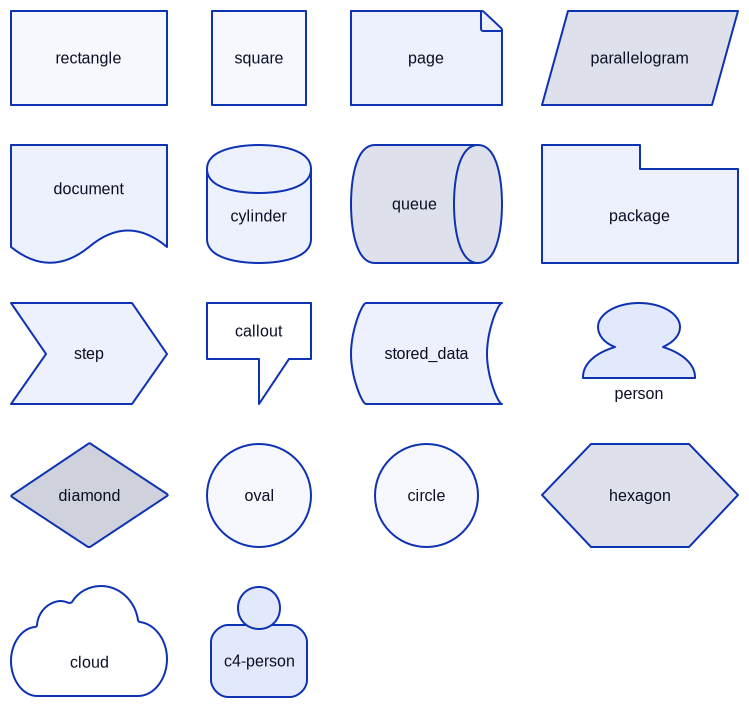
図形の角を丸くしたり立体的に見せたりもできる。
grid-rows: 2
grid-columns: 3

border-radius 0 {
  style.border-radius: 0
}

border-radius 10 {
  style.border-radius: 10
}

border-radius 999 {
  style.border-radius: 999
}

shadow style {
  style.shadow: true
}

3D style {
  style.3d: true
}

multiple style {
  style.multiple: true
}
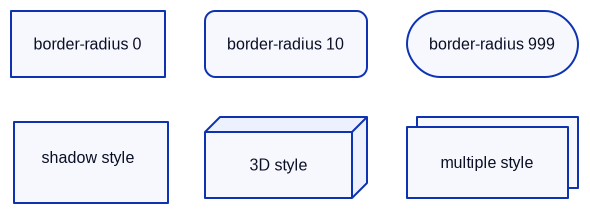
基本図形を書き出すだけで終わってしまった
ドキュメントを見ると図形の配置とか色とかかなり細かく指定できるみたい。
次回は D2 でどこまで UML 図を表現できるか調べてみよう。